When I'm running a task for a long stretch, I just leave it in auto mode. It's convenient, since it doesn't ask me about every little thing.
Then at some point it hit me — I'd been switching auto on without really knowing what it does.
Switching modes is simple. Press Shift+Tab in the input box and the indicator at the bottom of the screen changes. The hard part is when to turn on which. That's what this piece is about — what each mode does, and which situation it fits.
A mode is a knob for how much you hand over
When Claude is about to edit a file or run a command, it stops and asks, "is this okay?" The mode sets how often it asks.
The official docs frame it the same way.
Each mode makes a different tradeoff between convenience and oversight.
One end is checking every single thing yourself (oversight); the other is handing over nearly all of it (convenience). If the work is sensitive, I turn the knob toward oversight; if I trust the direction, toward convenience.
Four modes come up in the everyday on-screen cycle (there are two more for special cases, which I'll get to below).
- (no indicator) —
default, the baseline accept edits onplan mode onauto mode on
Each press of Shift+Tab cycles through these. (auto only joins the cycle once its requirements are met; if they aren't, only three modes cycle — the requirements are at the very bottom. And the cycle order isn't in order of how much you hand over, which I'll come back to.)
For brainstorming or exploring — plan
Maybe it's code you're seeing for the first time, or the start of a big task. Sometimes you'd rather settle on a direction than let it start editing right away.
In plan mode, Claude only reads and looks around — it doesn't touch the source. Instead it lays out a plan: "here's what I'd do."
Plan mode tells Claude to research and propose changes without making them.
I tend to keep it in plan during the brainstorming stage. Once it starts touching files directly, it can wander off in a strange direction and the job snowballs.
When the plan looks good, I kick off the run from right there. At that point I can choose whether to go straight to auto, to accept edits if I only want to hand off the editing, or to default where I confirm each step. So my usual flow is plan it out → run it in auto.
When running a task — auto. Just "automatic"?
The direction is set, and it's a task that has to run for a long stretch. Confirming every single step becomes a chore of its own.
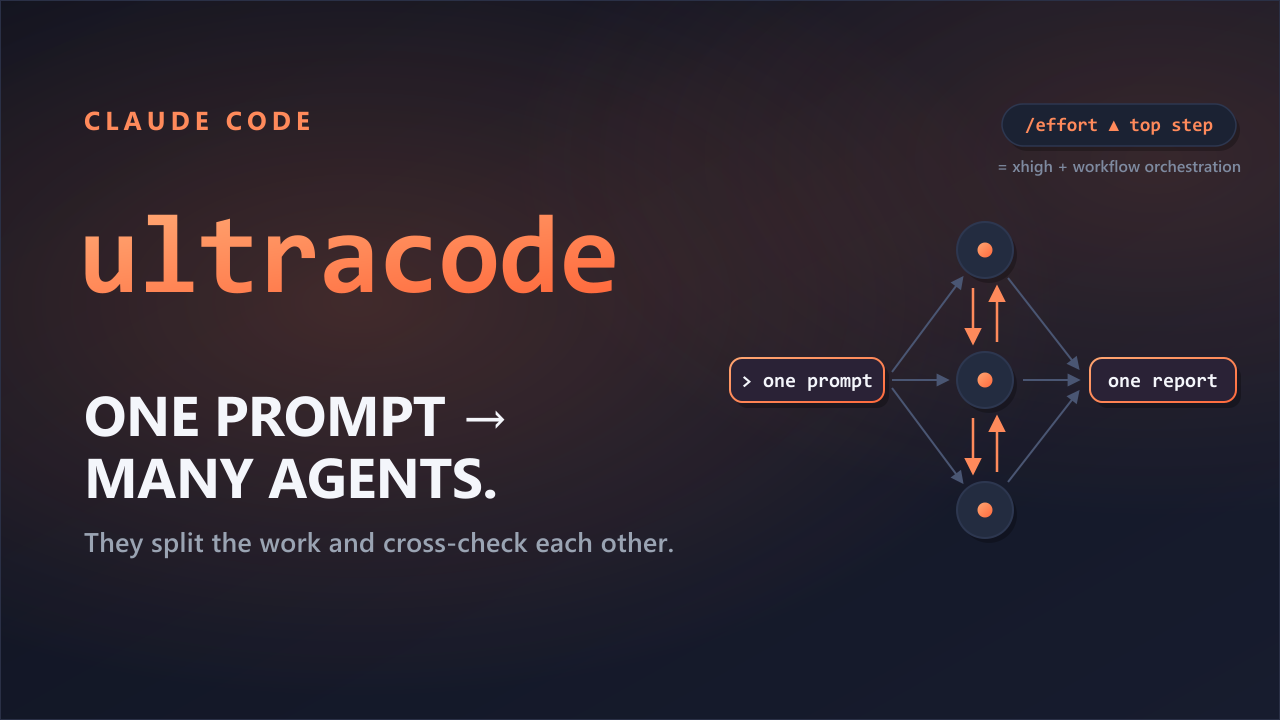
This is when I leave it in auto. The docs point to the same use — "Long tasks, reducing prompt fatigue."
The trouble is, it's easy to turn on while thinking it just means "auto-approve everything." auto isn't simply turning it loose.
A separate classifier model reviews actions before they run, blocking anything that escalates beyond your request, targets unrecognized infrastructure, or appears driven by hostile content Claude read.
Put simply, you hand it off but attach a supervisor. Everyday work (edits and commands inside the working folder, installing dependencies, reading) passes through automatically, while hard-to-reverse actions — production deploys, force pushes, mass deletions in the cloud, curl | bash — are blocked by default. The default isn't "everything goes through"; instead, the dangerous categories are fenced off from the start — like when you told it to fix one file and it tries to delete the whole folder, or when it reaches for an outside server it never normally uses, or when it gets pulled along by an instruction someone slipped into a page it read. On top of that, it honors the lines you've told the AI not to cross. That said, this supervisor only filters out clearly dangerous actions — it won't catch every mistake.
- It's still experimental (research preview). The docs say it plainly — it cuts down on prompts but doesn't guarantee safety. It doesn't mean handing off even sensitive work without review.
- There are requirements to use it. It only turns on if you're on Claude Code v2.1.83 or later with a recent model. auto mode is a relatively recent addition.
The two that get mixed up — accept edits and auto
Here's where it gets confusing. As you cycle through Shift+Tab, the same double-arrow icon (>>) shows up twice. Both accept edits and auto show that same arrow. You tell them apart by the label beside it — look for whether it says accept edits on or auto mode on.
In terms of history, accept edits came first; auto arrived later. They wear the same icon but do different things.
| accept edits | auto | |
|---|---|---|
| Scope of auto-approval | File edits + a limited set of file-housekeeping commands (mkdir to make folders, rm to delete, mv to move, cp to copy, and so on), inside the working folder only | All tool calls (but destructive actions are blocked) |
| Ad-hoc shell commands | Still asks | Automatic (the supervisor reviews) |
| How it filters | A preset list of rules | A judgment made case by case (the supervisor model) |
In one line: accept edits is a list that says "these edits pass," while auto judges case by case whether something's okay before letting it through.
It can be startling to see rm (delete) on the list, but accept edits still can't touch files outside the working folder — what gets deleted automatically is limited to the folder you're working in right now.
So what's accept edits for? When you want to hand off the editing but watch each command run yourself. In the docs' words, when you "plan to review changes later in your editor or with git diff."
When you want to see each one — default (no indicator)
This is the baseline mode, with no indicator at all. It asks about everything except reading. File edits and commands alike, it confirms every time.
Use it when risky changes are in the mix, when Claude might reach for an unfamiliar command, or when you're handing off a task for the first time. Exactly the use the docs point to: "Getting started, sensitive work."
It's the slowest, but the safest.
bypass — for a safely isolated environment
There's one more mode tucked away: bypassPermissions.
Normally you don't see it. It's not in the default Shift+Tab cycle; you have to turn it on with a flag like --dangerously-skip-permissions before it'll appear. It's no accident that the name has "dangerously" in it.
This mode turns off both the prompts and the safety checks. Only two things still stop it — the rules you've set in advance saying "ask about this," and commands anyone would call catastrophic, like wiping your whole computer or your home folder (rm -rf /, rm -rf ~). Beyond that, assume there are no guardrails.
The key difference becomes clear when you put it next to auto. auto has a supervisor (the classifier); bypass doesn't. That's why the official docs recommend this directly.
bypassPermissionsoffers no protection against prompt injection or unintended actions. For background safety checks with far fewer permission prompts, use auto mode instead.
"Prompt injection" here is, put simply, the AI being led along by instructions someone slipped in with bad intent. auto has a supervisor to filter that out; bypass doesn't.
There's a place where this mode does earn its keep: an isolated environment where, if something goes wrong, the damage stays inside it. A container locked down so it can't freely reach out, or a throwaway VM — something you toss out whole if it breaks, walled off from your files and credentials, so that whatever happens inside doesn't spread beyond it. In a setup like that, auto's safety checks have nothing left to protect and only cost you speed, so it makes sense to strip them out and let it run unattended to the end. (Your everyday laptop or work PC doesn't count, so for ordinary work I still think auto is the better choice.)
And if you hand it off and things still go sideways? Within the same conversation, you can try to roll back to an earlier point with /rewind — both the conversation and the code Claude changed. But there's a limit. Files deleted or moved by a command (one-line commands like rm or mv) don't come back — /rewind only records what Claude changed directly with its editing tool. The same goes for changes that have already gone out (a push, a deploy). bypass especially lets those commands run unchecked, which is the reason to keep it to a safely isolated environment. (How far /rewind reaches, I covered separately in the piece on it.)
So, when to turn on which
Before handing it off, two things are worth thinking about.
One, is this something I'll have to look over again partway through? If so, lean toward oversight (plan, default). If not, toward convenience (accept, auto).
Two, if it gets tangled, can I roll it back? When there's a safety net to roll back with (a git commit, an isolated environment, or /rewind within the same conversation — though files deleted by a command, and changes you've already pushed out, can't be undone), I hand over one notch more with an easy mind.
This is how I use it — not the one right way; find your own. Explore with plan, run with auto. When it's risky, I drop it down to default; when I only want to hand off the editing, accept edits.
Reference — the modes at a glance, and how to turn them on
| On screen | Mode | What runs without asking | Use (docs) |
|---|---|---|---|
| (none) | default | Reading only | Getting started, sensitive work |
accept edits on | acceptEdits | Reading, editing, limited file commands (inside the working folder) | Iterating on code while reviewing |
plan mode on | plan | Reading only (no editing) | Exploring code before changing it |
auto mode on | auto | Most things automatically, destructive actions blocked | Long tasks, reducing prompt fatigue |
| — | bypassPermissions | Everything (no safety checks) | Only in an isolated container or VM |
(There's one more mode, dontAsk, but it runs only what you've allowed in advance — it's for CI and scripts, so it doesn't show up in the everyday on-screen view.)
How to turn them on. While a conversation is open, Shift+Tab cycles through default → accept edits → plan (the same on Mac, Windows, and Linux). auto attaches after plan once it meets the requirements, and the first time you switch to it, it asks for your consent once — if it can't meet the requirements it won't appear in the cycle at all, so if you don't see it, nothing's broken. For plan, you can also just put /plan in front of your prompt. If you want to start out in a particular mode, add an option to the command that launches Claude Code — put the mode name in place of the angle brackets, like claude --permission-mode plan. For everyday use, Shift+Tab is enough.
The Shift+Tab order (default → accept edits → plan → auto) isn't the same as the order of "how much you hand over." plan actually hands over the least (reading only), yet it sits in the middle of the cycle. Rather than memorizing it by order, you're better off choosing by situation.
Sources
- Anthropic Claude Code: Permission modes
- Anthropic Claude Code: Permissions
- Anthropic Claude Code: Interactive mode