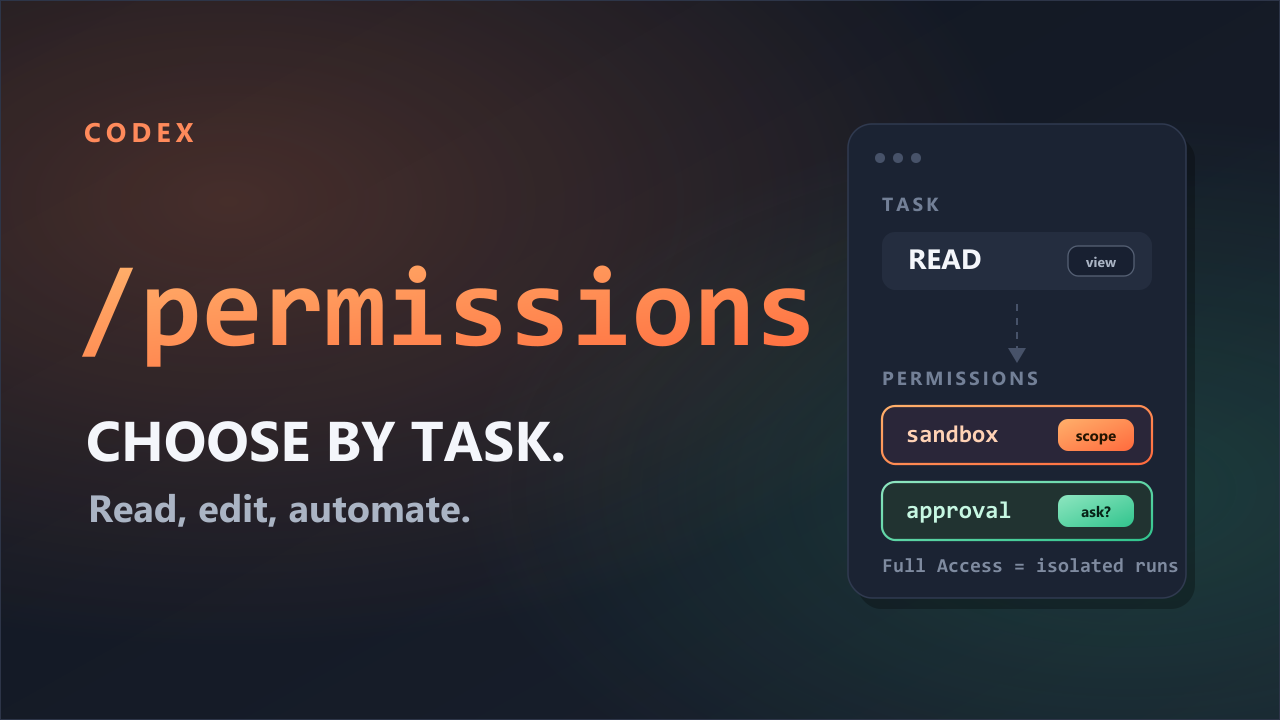
Codex is a coding agent. Give it a task, and it reads and edits files and runs commands in a shell such as PowerShell. Those capabilities are essential to its work. The question is whether every command Codex runs should inherit the full permissions of the user signed in to Windows.
If commands run by Codex could access every file and system resource available to that user, a single mistaken command could have a much larger impact than necessary. The Windows sandbox narrows that scope. Instead of trying to decide whether each command is safe or dangerous, it creates an OS-level boundary that unapproved commands cannot cross.
Approval Is for Crossing the Boundary; the Sandbox Sets the Default Limit
Approval and the sandbox serve different purposes.
Approval is the process of asking the user for permission when a command needs to cross a defined boundary. If Codex needs to write a file outside the current workspace, for example, it can pause and request approval instead of running the command immediately. The sandbox, by contrast, limits what commands can access without approval. It is the default limit that applies before the user approves an exception.
The official Codex documentation for Windows says that, in agent mode, the sandbox blocks filesystem writes outside the working folder and network access that has not been explicitly approved. This isolation runs directly on Windows, without WSL or a VM.
The Windows sandbox discussed here is not the separate Microsoft product called Windows Sandbox, which launches a separate, lightweight Windows environment. Codex builds its boundary from existing Windows mechanisms: user profiles, tokens, ACLs, firewall rules, desktops, and Job Objects.
Turning an Abstract Permission Scope into a Windows Boundary
In Codex, the permission scope begins with a PermissionProfile. It describes the allowed scope in human-readable terms, such as :workspace. Windows, however, cannot enforce file access based on :workspace alone. It needs actual paths and access conditions.
In Codex CLI 0.146.0, the sandbox manager passes this higher-level policy to the Windows sandbox manager. The Windows implementation resolves it into concrete conditions: the current workspace root, any additional writable roots, readable roots, and whether network access is allowed. This process appears in the resolved permissions and unified execution code.
With those paths and access conditions resolved, the Windows sandbox manager decides how to isolate the command. It selects the appropriate backend, prepares a sandbox session, and only then runs the command.
Preparing Profiles and an Access List First
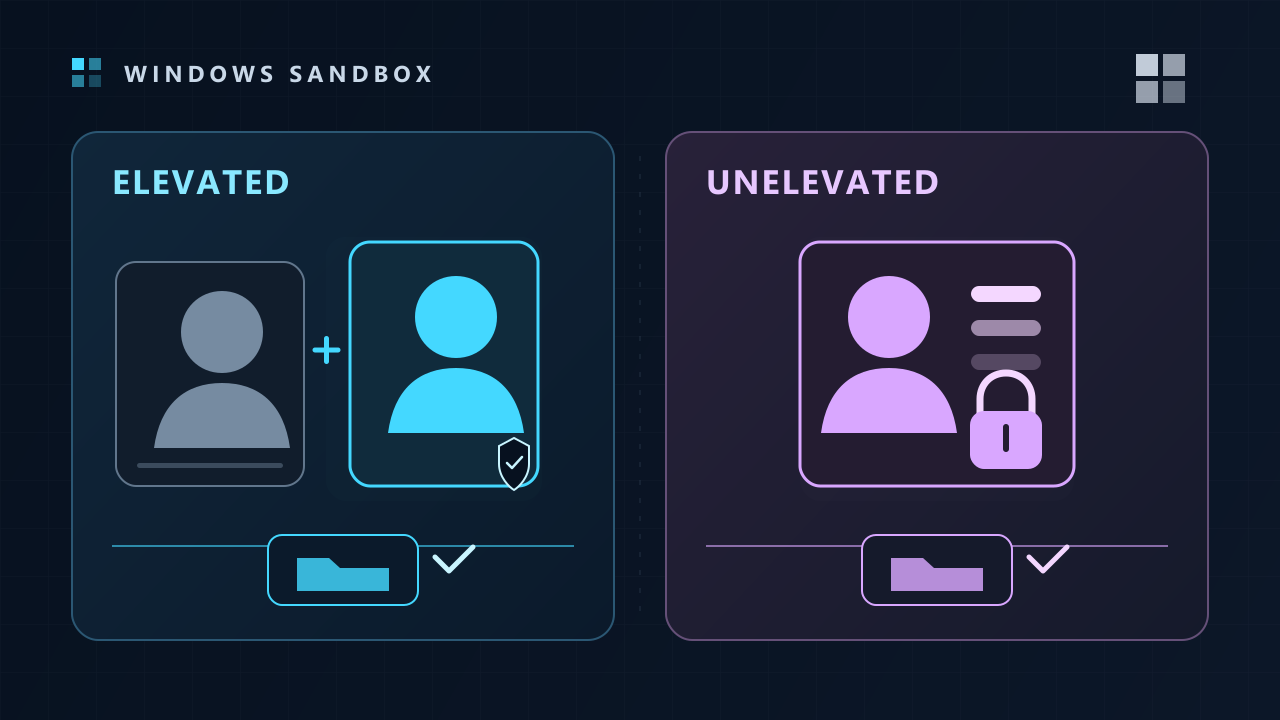
In elevated mode, commands do not run as the user currently signed in to Windows. Codex instead creates two dedicated user accounts, CodexSandboxOffline and CodexSandboxOnline. It runs commands under one of them depending on whether network access is allowed.
Codex also creates a capability SID for each workspace. A SID is an identifier Windows uses to distinguish security principals such as users and groups. Codex adds this capability SID and the sandbox group to the ACLs of allowed paths.
Think of a token as the ID a process presents, while an ACL is the access list posted at the entrance to a file or folder. Windows checks both: which identities and restrictions appear on the ID, and which kinds of access the list grants to those identities.
The network boundary is also prepared during setup. The Codex CLI 0.146.0 source contains code that creates firewall rules to block outbound traffic for the offline user and adds WFP (Windows Filtering Platform) filters scoped to that user. The relevant pieces appear in the setup, sandbox users, capability SID, firewall, and WFP code.
I did not directly inspect the firewall rules registered on the current host or measure their actual effect on network access. The source code shows that this setup exists; it does not by itself prove the blocking effect on this host.
Each Command Runs with a Restricted Token
Once setup is complete, we can follow the path of a single command. This section uses the elevated shared backend and command runner in Codex CLI 0.146.0 as its reference.
The elevated backend selects a dedicated sandbox user depending on whether network access is allowed, then starts the command runner as that user. The command runner does not pass the user token unchanged to the actual command. It adds the user SID and the workspace capability SID as restricting SIDs, then creates a restricted token with DISABLE_MAX_PRIVILEGE, LUA_TOKEN, and WRITE_RESTRICTED.
The command runner calls the Windows API CreateProcessAsUserW with this restricted token to start the actual command. Depending on the situation, input and output are connected through ConPTY or pipes. This flow can be traced through the elevated backend, command runner, token, and process code.
The restricted token and ACL work as a pair. According to the Windows documentation on restricted tokens, Windows performs a second check against the restricting SIDs after the normal access check succeeds. Access is allowed only if both checks pass. With WRITE_RESTRICTED, this second check applies to access that modifies an object, such as writing to it.
A DACL determines which security principals are allowed or denied access. If a folder ACL has no allow entry matching a restricting SID in the restricted token, the process cannot write there. The reverse is also true: adding one allow entry to an ACL does not give every process access. Both the command token and the target ACL must satisfy the conditions.
Private Desktops and Job Objects Extend the Boundary Beyond the Filesystem
A filesystem boundary cannot control every object a command might reach. Windows has user interface objects such as windows and messages, and a command can create child processes of its own.
When Codex CLI 0.146.0 runs a command, it creates a randomly named private desktop and specifies that desktop in the new process's startup information. In Windows, a desktop is a logical display surface containing user interface objects such as windows, menus, and hooks. A private desktop reduces the sandbox process's access to windows and messages on the existing desktop. According to the official documentation, both elevated and unelevated modes use a private desktop by default.
A Job Object is a Windows mechanism for managing multiple processes as a unit. Codex places the process it starts in a Job Object so it can manage the lifetime and termination of the entire process tree created by that command.
The two mechanisms have different roles. A private desktop isolates window objects, while a Job Object manages the process tree. Neither decides whether a process can write to a file or folder; that boundary comes from the combination of the restricted token and ACLs.
Parent and Child Processes Inherited the Same Boundary
On July 31, 2026 KST, I ran the native Windows codex sandbox command to check this architecture directly. The test used Codex CLI 0.146.0, the elevated configuration, PowerShell, and :workspace, with no additional approval inside the sandbox.
Both the parent PowerShell process and the child PowerShell process it created ran as CodexSandboxOffline. Both had restricted tokens and ran inside a Job Object. They also shared the same desktop name: CodexSandboxDesktop-ab69833b728db109b54f73a638a4e0f. The live run reflected the identity, token, and desktop boundaries described in the source.
Both processes could create files inside the allowed workspace. When they tried to write to a sibling canary directory outside the workspace, however, Windows returned access denied. A host process running outside the sandbox could write to the same canary.
The ACLs matched these results. The workspace had entries granting modify access to CodexSandboxUsers and the workspace capability SID. The sibling canary had neither entry. Even though the parent and child inherited the same sandbox identity and restricted token, they could write only to the workspace whose ACL matched those restricting SIDs.
There is one limit to what this test established. I confirmed that the parent and child were each inside a Job Object, but I did not directly compare their Job Object IDs. I therefore did not verify that they belonged to the same Job Object.
What the Sandbox Does Not Prevent
At this point, the sandbox may sound as if it can determine whether a command is safe or dangerous. It cannot. The sandbox does not judge a command's intent. Inside the allowed workspace, both the parent and child processes created files. A command with the same permissions could also overwrite or delete existing files there.
The Windows sandbox does not eliminate risk. It limits what an unapproved command can affect.
You should not assume that changes inside the workspace are safe simply because a sandbox is present. The Windows sandbox is a default boundary that prevents a bad command from automatically exercising all the permissions of the signed-in user. The linked article explains how the elevated and unelevated approaches apply this boundary differently on Windows and how to choose between them.